
To have a customer opt out of texting please follow these instructions:
1) Go to myKaarma 'Customer Tab'.
2) Look up customer information.
3) Select correct customer.
4) Once you have pulled up the customer information, select the edit button.
5) Once you select the edit button, you should see the customer contact information. Please find the number of the customer you wish to opt out of texting.
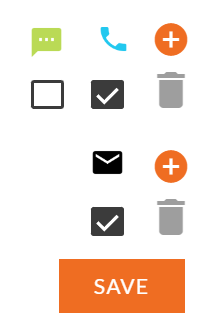
6) Once you have found that number, please uncheck the box to the right of that number where it shows a green texting icon above it.
7) Go to the bottom of the window and click save. This customer has now opted out of texting.
Comments
0 comments
Please sign in to leave a comment.